
Phluffle turns a description or a screenshot into a working, clickable prototype with real screens you can tap through. This guide takes you from a new account to a shareable prototype in about five minutes.
Create your account
- Go to https://phluffle.com and click Start building (or Sign up).
- Sign up with Google, GitHub, or your email and a password.
- If you see "You're on the list", an admin activates new accounts before you can build. You'll get an email as soon as you're in.
Every new account starts with 100 free credits. Credits pay for the AI work, based on what each generation actually uses, so a whole new prototype costs more than a small change. See Plans and credits for the details.
Describe what you want to build
On the New prototype page, type what you're making and the screens you need. Be specific about who it's for and what each screen does. For example:
A mobile app for booking dog walks: a welcome screen, a list of walkers near you with ratings and prices, a walker's profile, a booking screen to pick a date and time, and a confirmation.
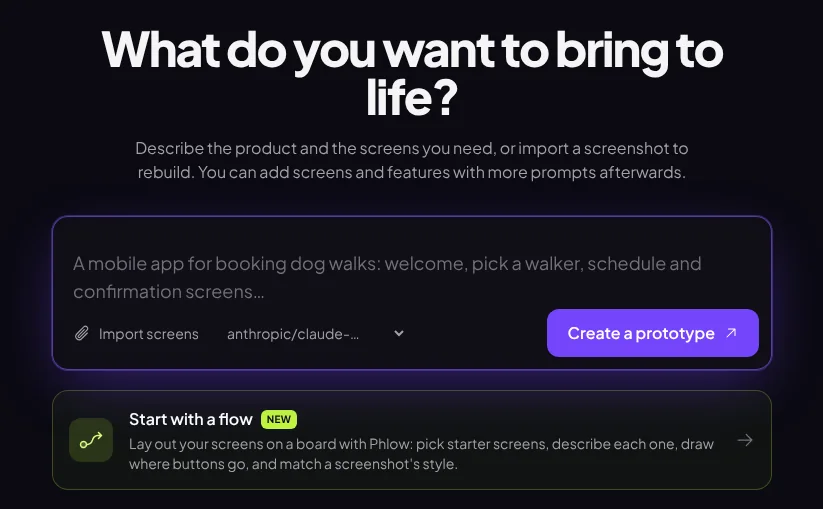
You can also:
- Attach screenshots with Import screens (or drag and drop, or paste): up to 5 images, 10 MB each. Phluffle can rebuild a screen from a picture, or follow its style. See Screenshots and design references.
- Start with a flow to lay your screens out on a board first. See Start with a flow.
Click Create a prototype.
Watch it build
Your prototype opens right away and builds in front of you. Screens appear in the preview as soon as each one is finished, and the chat on the left shows each step. Most prototypes take 30 to 90 seconds. You can leave the page; it keeps going.
When it's done, you'll see a short summary of what was built and how many credits it used.
Click through it
The preview is a working prototype, not a picture:
- Tap buttons and links to move between screens.
- Use the screen strip under the preview to jump to any screen.
- Switch between Desktop size and Mobile size in the top bar.
- Open the Canvas to see every screen on one board, with arrows for where each button goes. See The Canvas.
Change it with a prompt
Type what you want to change in the box under the chat and press ⌘/Ctrl + Enter:
- "Make the walker cards show the next available time."
- "Add a reviews screen and link it from the walker profile."
- "Switch to a warm orange colour scheme."
Each prompt makes a new version (v2, v3…) built on the current one. Every version is kept, so you can go back any time. See Versions, restore and retry.
Tip To change just one screen or one element, use Scope next to the prompt box. It's faster, cheaper, and leaves everything else exactly as it is. See Change one screen or element.
Fix small things by hand
Click Edit in the top bar to change text, colours, fonts, spacing and images directly in the preview, like a design tool. Hand edits use no credits. Click Save as v… when you're happy. See Visual Edit.
Share it
Click Share, then Create link. Anyone with the link can click through the prototype without an account; they can't see your prompts or change anything. You can also invite people by email to view or edit, and they can leave comments pinned to any element. See Share links and inviting people and Comments and Fix with AI.
Where to go next
- Plan a bigger app screen by screen with Start with a flow.
- Build with your team in a team workspace with a shared credit pool.
- Put it on the web as a real app with its own address, real data, your own domain and automatic SEO with Live Deploy (Pro).
- Take it into code with a project download, GitHub, or by connecting Claude Code or Cursor (Pro).
- Get better results faster with Writing great prompts.