
Start with a flow lets you plan an app on a board before anything is built. You pick a first screen, choose what comes next with +, say what goes on each screen, and Phluffle builds every screen with working links between them. It's the easiest way to get a bigger app right the first time.
Open Start with a flow
- Go to the New prototype page.
- Click the Start with a flow card (marked New).
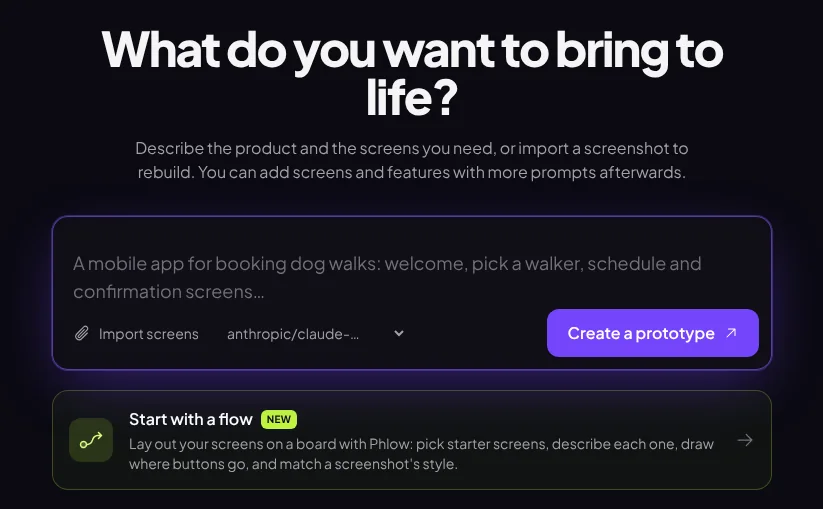
The page has a panel on the left for the basics and a board on the right for your screens. Prefer to type a description instead? Click Describe it instead.
Set up the basics
All of these are optional, but they help:
- Name: what to call the prototype. If you leave it empty, it's named after your brief or your first screen.
- It's a…: choose Website or web app or Phone app. Phone apps are designed for phone screens, with a bottom tab bar where the main screens need one.
- What are you building?: a short brief (up to 2,000 characters), such as who it's for and what they can do.
- Match a look: click Add a screenshot of a product or design system and every screen follows its colours, type and components. It matches the style, not the content. Or describe the style in words instead (up to 600 characters), like "warm and friendly, orange accents, rounded cards".
- AI model: which model builds it.
Pick your first screen
The board starts by asking Where does your app start? Pick one of Home, Welcome, Sign in, Dashboard, Browse or New screen (blank).
Each starter screen comes with a short description of what's usually on it. Every description is yours to rewrite.
Add the next screens with +
Every screen card has a + button. Click it and Phluffle suggests where people usually go next, like a choose-your-own-adventure. For example, after Sign up it suggests Onboarding, Dashboard and Sign in.
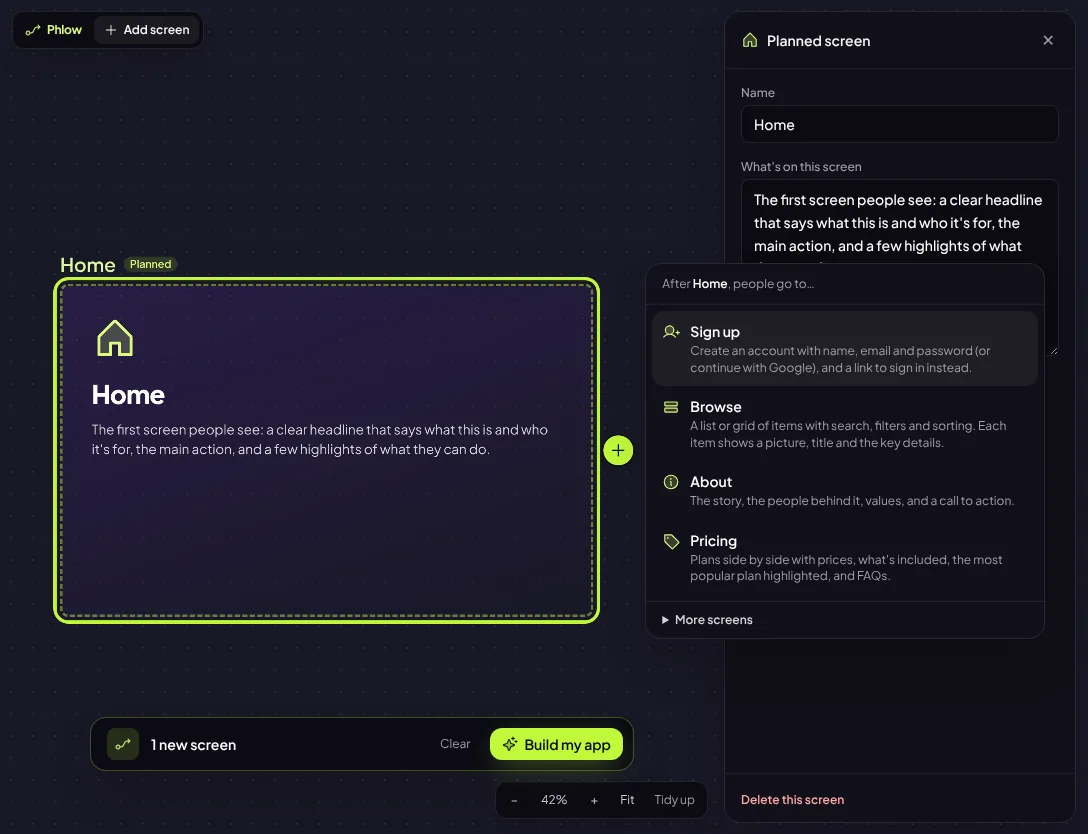
In that menu you can also:
- Open More screens to pick from all the starter screens.
- Choose a screen under Or link to a screen that's already here to link to it instead of adding a new one.
The 25 starter screens are: Home, Welcome, Onboarding, Sign up, Sign in, Dashboard, Browse, Details, Search, Calendar, Booking, Messages, Notifications, Feed, Map, Cart, Checkout, Confirmation, Profile, Settings, Pricing, About, Contact, Help, and New screen (blank).
You can also click Add screen in the Phlow toolbar at the top left to add a screen that isn't linked to anything yet.
Describe each screen and its buttons
Click a screen to open its side panel:
- Name: up to 40 characters. Two screens can't share a name; Phluffle numbers duplicates.
- What's on this screen: the content, actions and anything that must be there (up to 600 characters).
- Goes to: every screen this one links to. Type the button text for each link (for example "Get started", up to 40 characters), or click Remove to drop the link.
- + Add the next screen: the same suggestions as the + button.
- Comes from: which screens link here.
- Delete this screen: removes it (or press Delete or Backspace while it's selected).
Press Esc to close the panel.
Tip To link two screens that are already on the board, drag from the + on one card and drop it on the other.
Move around the board
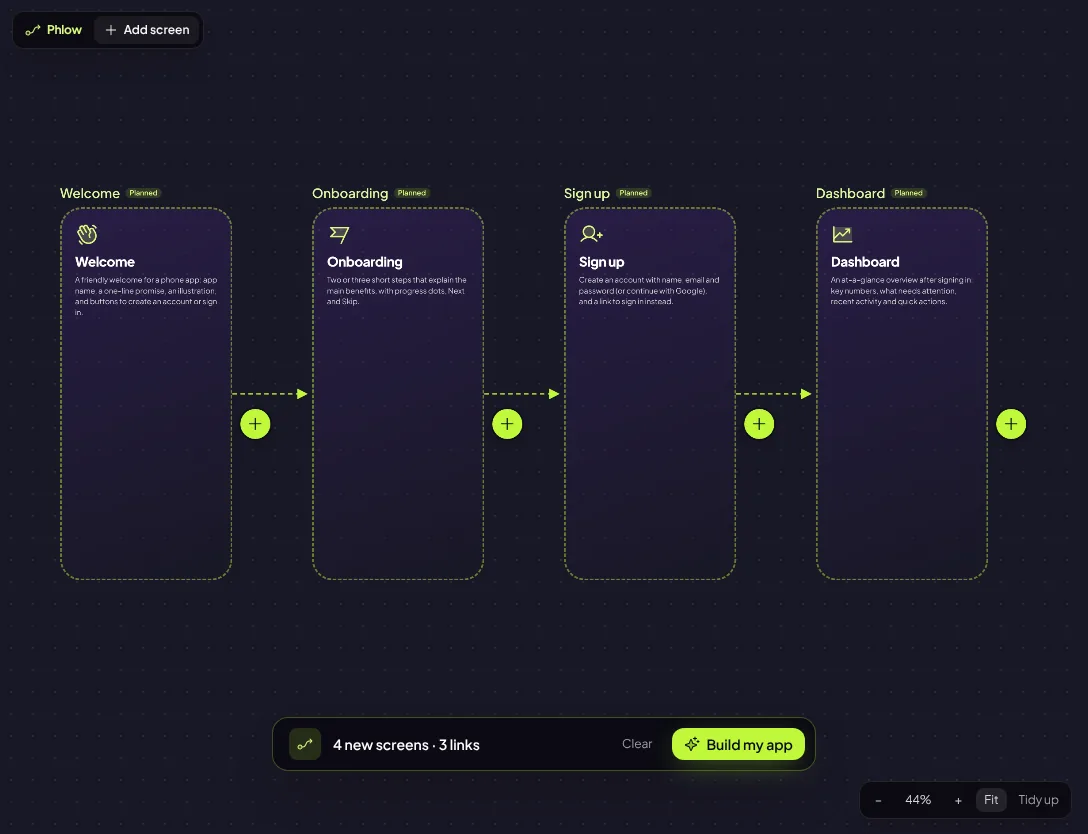
Drag the background to pan, and use ⌘/Ctrl + scroll (or the zoom buttons) to zoom. Fit shows everything; Tidy up puts the screens back in flow order. You can drag planned screens to arrange them however you like.
Build your app
The bar at the bottom shows what will be built, like "4 new screens · 3 links". When you're ready, click Build my app (you need at least one screen).
Phluffle turns your board into one brief: every screen in order with its description, and every link as a working button labelled with the text you gave it. Your new prototype opens and builds in front of you, just like a prompt.
Building uses credits like any prompt. See Plans and credits.
Limits
| What | Limit |
|---|---|
| Planned screens at once | 24 |
| Links | 80 |
| Screen name | 40 characters |
| Screen description | 600 characters |
| Button text | 40 characters |
| Brief | 2,000 characters |
| Style description | 600 characters |
Your board is saved in this browser
Until you build, your board is saved in this browser only, so you can close the tab and come back. To start again, click Start over with an empty board.
After you build, keep planning on the prototype's Canvas: add screens, change existing ones and draw new links, then build again. See The Canvas.